

Printing and Reprinting PDFs (Web)
Online PDF Access
To access PDFs
Click on the PDFs tab! 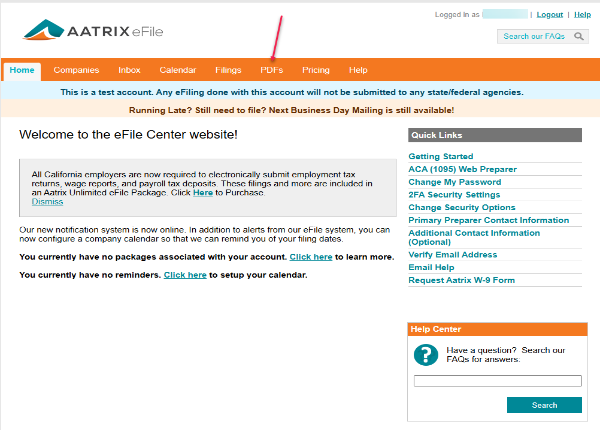
Authentication Required
You will then be prompted to set up 2 Factor Authentication for access. Click Authenticate. 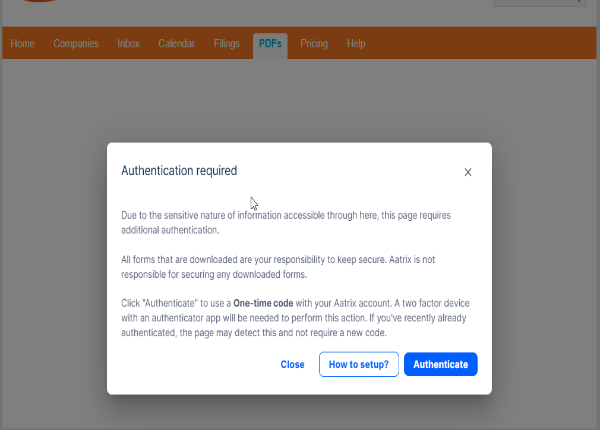
Set Up 2FA
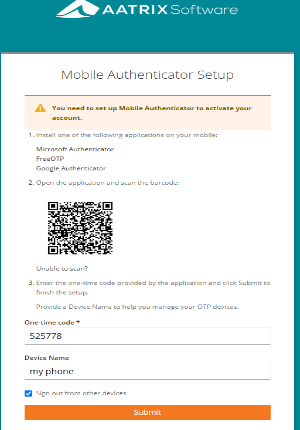
Follow the instructions on the screen to set up 2FA on your mobile device to access PDFs.
- Install one of the following applications on your mobile:
- Microsoft Authenticator
- FreeOTP
- Google Authenticator
2. Open the application and scan the barcode.
3. Enter the one-time code provided by the application and click Submit to finish the setup.
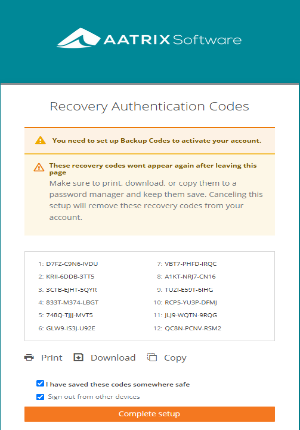
Recovery Authentication Codes
Keep a copy of the Recovery Authentication Codes and complete setup.
- Print, download, or copy the codes to a password manager.
- These codes will not appear again after leaving this page.
Viewing PDFs
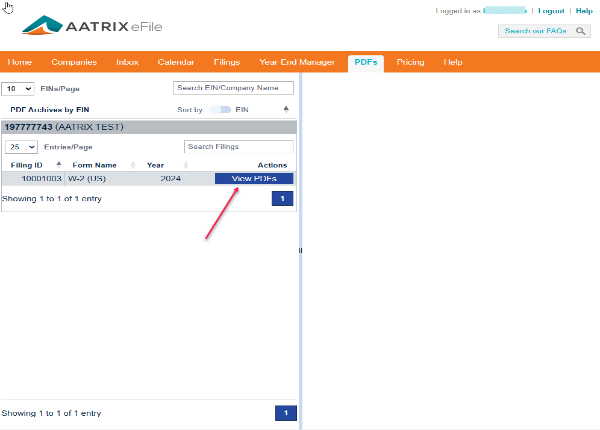
Once you have authenticated, you can then click View PDFs.
Download or Generate PDFs
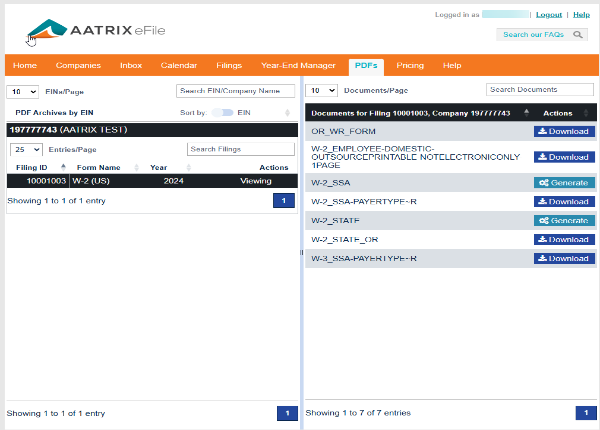
You will see all the PDFs for the selected AFID on the right side.
- Select Download to download the file.
- Or click Generate to generate the PDF and then download it once complete.
Note:
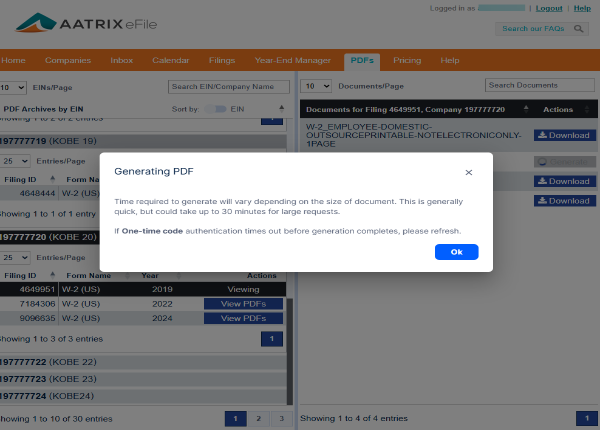
- Time required to generate will vary depending on the size of the document. This is generally quick, but could take up to 30 minutes for large files.
- If one-time code authentication times out before generation completes, please refresh.