

Entry Point Error
Resolving Entry Point or Update Errors
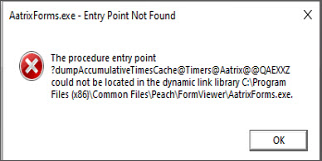
If you are receiving an Entry Point error, or another error we believe an update will help, follow these steps to resolve the issue:
'''Steps to Resolve'''
1.Take note of the location of the file in the error message. Then navigate to that location in Windows File Explorer to complete the next steps. If the location is not in the error, go to the Aatrix program files.
2.Once you are in the Program Files location, you will see an '''ERRORREPORT''' application. (It may also appear as '''ERRORREPORT.EXE'''). Open that application.
3.The application will have only 1 option available to use, which will be to '''Fix Update'''. Click that button.
4.You may see a message that states, "Reloading as admin". Click '''OK'''.
5.You may get a UAC (User Account Control) prompt either asking for you to select '''Yes''', or it will ask for Administrator credentials for the computer. You may need your IT staff to help with this step.
6.The updater will then open and you can run it as normal. Once the update is complete, you are good to resume filing forms.
'''The Manual Update is also an option that may resolve this error.'''
Navigate to [https://partner.aatrix.com/], select your accounting software from the list, and run the quarterly update.